
How to Verify a Chinese Invoice PDF
Check a Chinese invoice PDF, distinguish original files from scans and screenshots, and resolve file problems before interpreting verification results.
Start with the Chinese legal name or USCC. Confirm the matching company before opening its profile.
To verify a Chinese invoice PDF, keep the attachment you received, identify the tax invoice inside it, and submit the required invoice information through an appropriate verification service. If that service accepts the original PDF, use its file option. If it requires manual entry, read the fields from the invoice and follow the instructions for that invoice type. Opening the document or extracting its text is only preparation for the check.
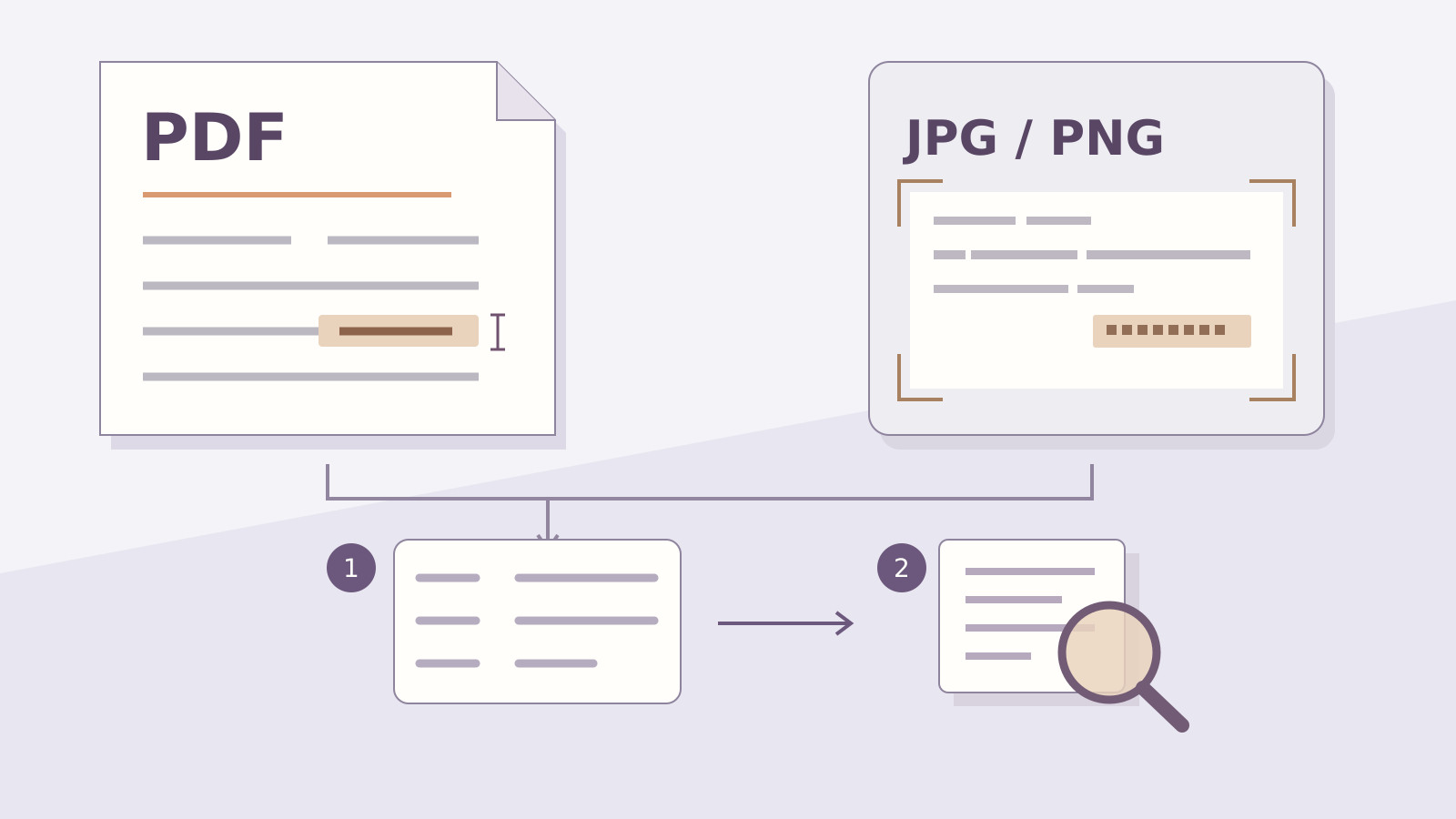
The practical difficulty often starts before submission. A supplier may send an original electronic invoice, a scan saved as a PDF, or a picture embedded in a PDF. These can look similar on screen while giving a file-processing service very different material to read. Establish what you have before converting files or repeatedly trying the same upload.
The PDF you received
Begin with the attachment's source. Was it downloaded from the issuer's invoice delivery page, attached to an invoice email, or created from a photograph? Keep that information beside the received file. A filename such as invoice.pdf describes the container; it does not establish who issued the document or how its contents were produced.
A Chinese tax invoice, or fapiao, belongs to China's tax-invoice system. An English commercial invoice or pro forma invoice may also arrive as a PDF, but it serves a different purpose. Before using a Chinese VAT verification service, identify the document from its title and contents. The existing Chinese VAT invoice verification guide explains the common invoice types and their input fields.
For a fully digitalized Chinese invoice, electronic delivery is ordinary. The State Taxation Administration's nationwide digital-invoice announcement provides for delivery through the electronic invoice service platform and other methods, including email and QR codes. A digital attachment does not need to have started as a paper document.
Ask for the file originally made available by the issuer when your copy has passed through a scanner, image editor or conversion website. Be specific: “Please send the original downloadable electronic tax invoice for this invoice number, rather than a photograph or a PDF made from a screenshot.” This is a practical request for a more usable source file, not a demand to issue the invoice again.
Text selection can help with transcription, but it cannot authenticate the attachment. Some PDFs contain selectable text; others contain an image, and some scans have an added OCR text layer. Successfully copying a number tells you that the reader can extract characters. It does not tell you whether those characters agree with the tax record.
Keep the received attachment unchanged while making any working copies. You can use an enlarged view to read small fields, but avoid overwriting the source with a translated, cropped or re-saved version. If a colleague later asks which file was checked, the answer should lead back to the actual attachment, not an edited copy assembled during the review.
From file to verification
Start from the national VAT invoice verification platform or a service whose invoice and file coverage you have checked. The national digital-invoice announcement permits units and individuals to verify digital-invoice information through the official services. A commercial upload interface can have narrower file requirements than the official system or another provider.
Read the upload requirements before choosing a file: accepted formats, size, page count and encryption restrictions all matter. A PDF containing one invoice and a PDF combining an invoice, purchase order and delivery note are different inputs. An application may accept only the first. Its rejection of the second describes that application's input limit; it does not decide whether the invoice exists.
Then identify what the interface has actually done. A preview shows that it displayed the file. Filled form boxes show that it extracted or accepted some fields. A verification response shows that a lookup was attempted and returned an outcome. These stages can appear on the same screen, but the reader should be able to tell which stage has finished.
Review any extracted fields against the visible source before submitting. Long invoice numbers can lose leading zeros when copied through a spreadsheet; an OCR result can confuse similar-looking characters. Compare the issue date and the exact amount or verification-code field requested for the selected invoice type. Keep the Chinese labels in view instead of relying on a translated filename or the supplier's email summary.
A fully digitalized invoice uses a 20-digit invoice number, while older types can require different combinations of identifiers. The number identifying the invoice is also separate from a company's taxpayer identifier. If the form asks for an invoice number, entering the seller's tax number will send the wrong information to the service. Use the detailed field guide linked above for the relevant type rather than treating the PDF extension as a rule for which amount to enter.
After submission, read the returned record alongside the attachment. Confirm that the response concerns the invoice you intended to check, then compare the displayed seller, buyer, items and amounts where available. Record a technical error, an inconsistent response or a completed match as the distinct outcome that appeared. A success message for file upload alone should never become the saved invoice-verification conclusion.
Screenshots and OFD files
A screenshot can still provide readable information for a check. If the necessary invoice fields are complete and legible, they can be entered into the appropriate manual verification form. A service with image recognition may help transcribe them, subject to its supported invoice types and an opportunity to correct errors. The useful question is what information can actually be recovered from this particular image.
Image recognition is not included in every file-upload service. Accepting PDF files does not automatically mean that an application can process JPG or PNG images, and putting a screenshot inside a PDF does not restore the original electronic invoice. If an upload option excludes pictures, use an available supported route or ask the issuer for the original attachment. Do not assume that renaming the extension will make an unsupported image readable.
A cropped image can be inadequate even when its visible text is sharp. It may show the total while omitting the invoice number, or preserve the number while cutting off a code required by that invoice type. Ask for the complete file or the specific missing part. Avoid guessing a hidden digit from another invoice issued by the same company.
OFD is another electronic document format used for Chinese invoices. It is not a photograph and is not an indication that the sender supplied the wrong type of document. The Jiangsu tax authority's explanation of digital-invoice formats identifies PDF, OFD and XML as download options. Which format a particular application can display or verify remains a separate question.
If your ordinary PDF reader cannot open an OFD attachment, request a PDF version downloaded from the issuer's delivery system, or use a suitable OFD-capable route. A concrete issuer example is AWS China's digitalized e-fapiao guide: it describes PDF and XML delivery by default and an OFD request through its support process. Other issuers may arrange delivery differently; this example does not impose the same customer-service process on them.
Keep any original OFD or XML file supplied with the readable PDF. Each can serve a role in the recipient's document handling. If you convert a file just to view it, label that output as a working copy and retain its source. A converted display should not silently replace the file that came from the issuer.
When the upload fails
The application rejects the format. Check its published support list and the actual file extension. A valid invoice in an unsupported format still requires another input route. If PDF is accepted but your only attachment is OFD, ask for the issuer's PDF download or use a service that expressly supports OFD. File-format support should be established before another verification attempt.
The PDF is password-protected or cannot be read. Ask the sender to supply an accessible original through the agreed channel. A password you use to open a document locally may not make it usable by an upload service. Avoid sending passwords or invoice details to an unrelated converter simply to get past an input error.
The service reads the file but fills the wrong values. Compare the extraction with the original and correct only the submission fields that you can establish. Keep the source attachment intact. If the amount box is wrong because the wrong invoice type was selected, fix the type before adjusting its associated fields. Otherwise the same number may be tested against the wrong requirement.
The file submits, but the service returns no record or an inconsistency. You have reached a different problem from unreadable bytes or an unsupported format. Preserve the response and the fields actually submitted. Follow the existing guide's result interpretation, including checking transcription and the applicable service coverage. Repeatedly compressing or converting the same file will not explain a completed lookup response.
Where a message is vague, describe the observable step: “The application could not read the attachment,” or “The submitted invoice details returned no record.” This gives the sender something specific to resolve. Calling every failure an invalid invoice discards the distinction between a document-handling problem and a result about the submitted invoice information.
Keep the file with the result
Consider a hypothetical handover between procurement and finance. Procurement receives an original invoice PDF by email, then sends finance a cropped chat image of its total. Finance also receives a screenshot labelled “verified,” but that image does not show the full invoice number or the check date. The three files are related in the conversation; they are not yet a reproducible record of one completed check.
The next useful action is to obtain the original attachment and establish which invoice the result concerns. If the earlier response cannot be tied to that invoice, perform a check through an appropriate available route. Keep the received file, the invoice identifier, the dated response and any unresolved difference together. This example concerns traceability; it does not imply that the cropped image was deliberately altered.
File retention also has a specific accounting context. Under the Ministry of Finance and National Archives Administration's 2020 notice, organisations using paper printouts of electronic accounting vouchers for reimbursement, accounting and archiving must also retain the electronic vouchers from which they were printed. That Chinese accounting requirement should not be presented as a universal retention rule for every overseas buyer, but it explains why a printout alone can be an incomplete handover.
A saved result has its own date. Keep that distinct from the invoice issue date and from the date an attachment was forwarded. If the issuer later supplies a correction, preserve the relationship between the original and the new material instead of overwriting the first file. The broader verification guide explains correction and invoice-status questions without turning this file-handling task into a tax-return procedure.
Finally, keep the document check within its purpose. An invoice whose recorded fields agree with the attachment can still raise a separate question about the company named on it. Use the invoice-issuer explanation to identify that role, and the supplier and invoice name-mismatch guide when the entities differ. A readable file and a completed invoice lookup cannot supply an explanation for an unrelated contracting party.
The file task is complete when the original material is usable, the check concerns the same invoice, and its dated outcome is preserved accurately. If one of those pieces is missing, request that piece explicitly. This makes the next exchange with the issuer considerably more useful than sending back another screenshot with the message “the PDF does not work.”