
Chinese Invoice QR Code Verification
Understand what a Chinese invoice QR code shows, compare the details, and complete an invoice check even when the code cannot be scanned.
Start with the Chinese legal name or USCC. Confirm the matching company before opening its profile.
A QR code on a Chinese invoice can help you read or obtain invoice information. Scanning it successfully is not, by itself, a complete authenticity check. First establish what the scan opened, compare it with the invoice you received, and use an appropriate verification service to check the invoice record.
For an overseas buyer, the confusing part is often the screen that appears next. It might show invoice details, offer a file download, or ask you to supply information for a new invoice. Those are different tasks. This guide explains how to move from a QR code to a meaningful check of a Mainland Chinese tax invoice, commonly called a fapiao.
1. Identify the QR code’s purpose
Start with the document around the code. Keep the complete invoice visible, including its title, number, date and seller. A cropped square forwarded in a chat removes that context. If the supplier has sent only a code, ask whether it is for viewing an existing invoice, downloading its file or requesting a new invoice.
The distinction is reflected in official guidance. The Liaoning tax authority’s digital-invoice guidance describes QR codes as one method of invoice delivery. It separately explains scanning a merchant’s code to submit an invoicing request. Neither description means that every code supplied by a business is an authenticity-check result.
| What opens | What you have reached | Your next step |
|---|---|---|
| Invoice number, seller, buyer and amount | A display of invoice information | Compare the displayed details with the complete invoice, then establish whether a verification query has been completed. |
| A page offering an invoice download | A file-delivery route | Obtain the original invoice file and check the invoice it contains. |
| A form requesting your invoice title or buyer details | An application to have an invoice issued | Confirm that you need a new invoice; this form does not verify an invoice already received. |
| A service response with a stated verification outcome | A reported invoice-check result | Identify the service and the invoice checked, then compare the returned information with your document. |
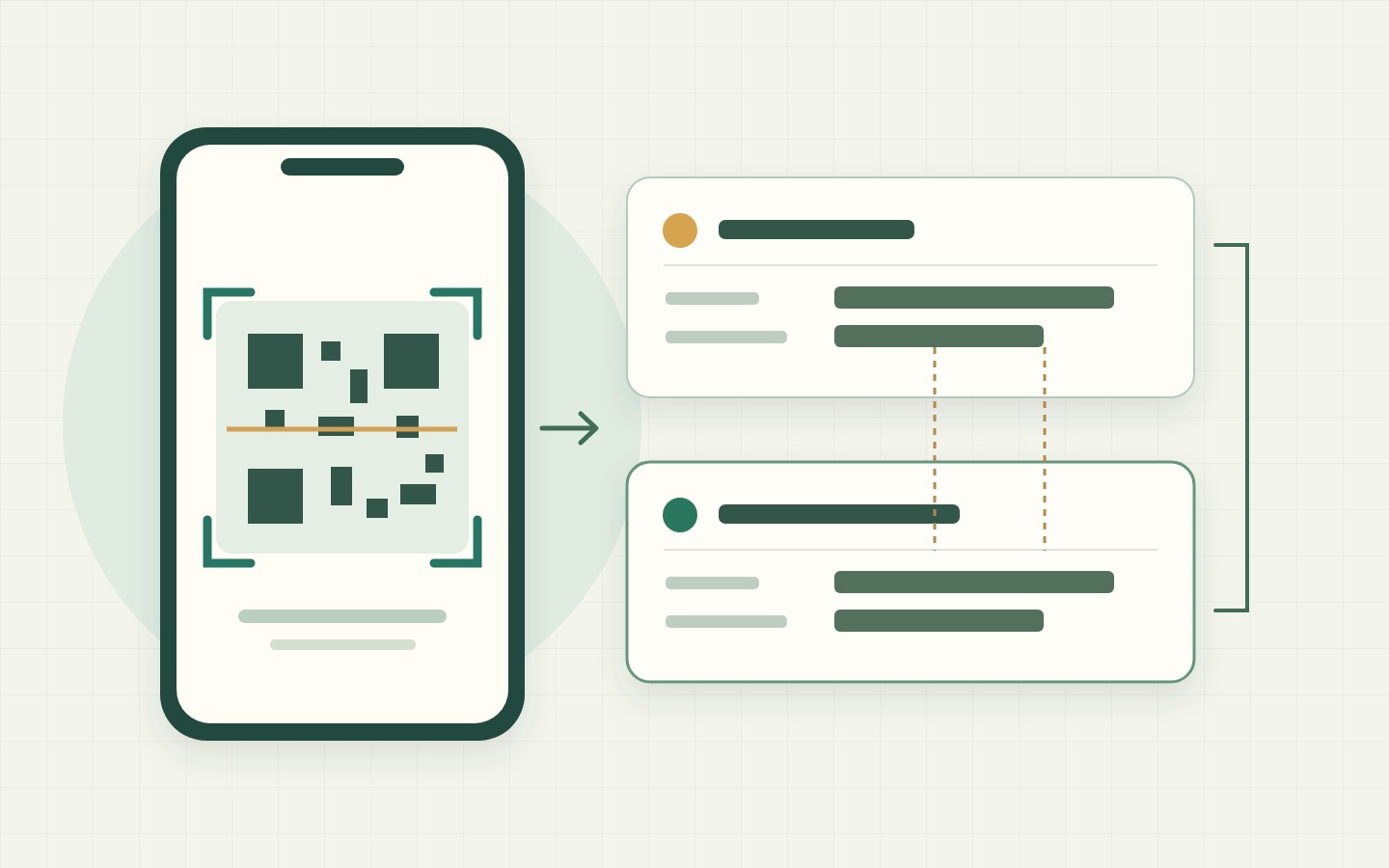
For a fully digitalized invoice, the Foshan tax authority’s explanation describes scanning the invoice’s QR code and comparing the resulting number, seller, buyer and tax-inclusive total as an initial check. That is useful, but it still requires you to read and compare the information.
A code printed on a commercial invoice or quotation needs separate treatment. Do not infer that it links to a Chinese tax record simply because the document says “Invoice.” It could serve another purpose. If the document type is unclear, the fapiao and commercial invoice comparison explains how to identify the material before choosing a check.
Inspect any destination before entering information. An issuer’s delivery service and the national tax-verification platform are not the same website, even if both display the same invoice. A delivery page can be useful without being an official verification service. Equally, a page’s familiar colors or tax-related wording do not establish who operates it.
2. Compare the displayed details
Place the scan result beside the original invoice. If you are reading both on one phone, save or open the original file so that switching screens does not leave you comparing details from memory. Start with the invoice number, then work through the parties and amount. A recognizable supplier name alone is not enough to identify a particular invoice.
- 发票号码 — Invoice number
- Compare the complete identifier, including any leading zeros. Keep it as text when copying it into another application. Do not confuse it with an order reference or the seller’s taxpayer number.
- 销售方 — Seller
- Compare the Chinese company name, and the taxpayer identifier where available, with the seller on the invoice. An English trading name in the supplier’s email is a separate reference.
- 购买方 — Buyer
- Check that the displayed buyer agrees with the document you received. A record concerning another customer is not a match for your invoice merely because the seller is familiar.
- 价税合计 — Total including tax
- Compare like with like. The tax-inclusive total is different from the goods subtotal, the tax amount alone or a deposit shown on a separate payment request.
Consider an illustrative example: your invoice shows a total of CNY 11,300, while the screen opened by the QR code shows CNY 1,130. Reopening the screen does not explain that difference. Confirm that you scanned the code attached to this invoice, read both amounts again, and ask the issuer to clarify the conflicting material. Keep the original file unchanged.
Another possible outcome is agreement on the displayed fields but an incomplete comparison. For example, the screen may show the invoice number and total without showing the buyer. Record what you could actually compare. Obtain the full invoice or use a verification route that supplies the missing information rather than treating a field that was not displayed as a confirmed match.
Keep the QR code separate from two other terms you may encounter: the invoice verification code, labelled 校验码, and the website’s CAPTCHA, labelled 验证码. A QR image does not tell you which digits a manual form requires. Use the invoice verification-code guide when that specific field is requested.
3. Complete the invoice check
Once you have readable information, choose the verification route deliberately. The national VAT invoice verification platform is the public tax-authority service. Start from its known address rather than assuming that whatever a generic camera application opens is the same service. Keep the invoice alongside the form throughout the check.
- Select the applicable invoice type. Use the invoice’s own title and identifiers. The fact that it arrived as a PDF, or has a QR code, does not by itself determine the input combination.
- Supply the required information. Follow the selected service’s current instructions. Review any automatically filled values against the invoice before submitting; successful extraction is preparation for a query.
- Read the returned outcome. Confirm which invoice was checked and compare the available details. A loaded file, a completed form and a successful lookup are different stages.
- Keep a dated record. Save the original invoice with the service used, the check date and the actual response. Keep any unresolved difference visible in the handover to a colleague.
The national platform’s operating instructions distinguish input combinations. Common fully digitalized VAT invoices use a 20-digit invoice number, issue date and tax-inclusive total. Older invoice types may require a separate invoice code and either an amount excluding tax or part of an invoice verification code. The main VAT invoice guide explains the field combinations in detail.
There is an important difference between scanning within a verification service and scanning with an ordinary phone camera. The former may be an input method for that service’s query. The latter may only read data or open a link. Look for the actual query outcome and the invoice it concerns instead of using the word “scanned” as the final conclusion.
The national platform’s current FAQ says that mobile login for invoice verification is not available. It also describes importing an electronic invoice file and completing the verification step. Do not assume that a code readable on your phone makes every subsequent official-platform function available on that device.
ChinaValidate’s invoice verification tool provides file and manual-input routes for supported invoices. Choose the input option shown by the tool and follow its requirements. It should not be described as a phone QR scanner: the practical handoff from this guide is the original invoice file or its required readable fields.
If the service returns a mismatch or cannot find the invoice, retain that precise outcome. The separate verification-mismatch guide addresses discrepancies after submission. A scan that displayed plausible information does not override a later unresolved lookup, and a technical failure should not be recorded as a completed check.
4. Resolve an unreadable code
A QR code that fails to scan leaves the scanning step incomplete. It does not establish that the invoice is false. First identify the observable problem: the camera cannot recognize the image, a link cannot open, or the destination does not provide the expected invoice. Each calls for different material or a different input route.
| What happens | What to check | A useful next action |
|---|---|---|
| The camera does not recognize the code | Whether the entire code is visible and the source image is legible | Open the original invoice at a readable size or request its original electronic file. |
| The code is cut off in a screenshot | Whether the missing area is present in the original | Ask for the complete document. Do not reconstruct the missing pattern. |
| A link opens but the file is unavailable | Whether the issuer can supply another delivery route for the same invoice | Request the original attachment, identifying the invoice number rather than asking for an unrelated replacement. |
| The destination shows a different invoice | The number, parties and amount on each document | Preserve the discrepancy and ask the issuer for the correct corresponding file or explanation. |
If the invoice fields remain complete and legible, an appropriate manual-input route may let you continue without scanning. The information still has to satisfy the selected invoice type’s requirements. Do not guess a hidden digit or substitute the supplier’s company identifier for a missing invoice number just to make the form accept an entry.
A useful supplier message is: “The QR code in the forwarded image cannot be read. Please send the original electronic invoice for the attached document, including the complete invoice number and all verification fields. We need the existing invoice file, not another cropped image.” Adapt the request to the particular missing item instead of asking vaguely for a “better QR code.”
For an attachment that will not open or upload, the invoice PDF guide covers file-handling problems. Converting or renaming a file does not establish authenticity. Preserve the received original, and distinguish a problem reading its contents from a verification service’s response about the invoice itself.
5. Confirm the invoicing company
After comparing the invoice information, return to the company named as seller. A QR display can repeat a company name, but it does not independently explain how that company relates to your supplier. Keep the Chinese legal name and taxpayer identifier available when checking the company’s registration information.
Use a company search to investigate the registered entity behind the invoice, separately from the invoice query. Compare the identifier and name rather than relying on a familiar English abbreviation. Registration information answers a question about the company; the invoice result answers a question about an invoice record. Neither should silently stand in for the other.
For a hypothetical example, suppose the QR display, invoice file and verification response all name Company A. Your purchase order names Company B. The three invoice references may agree, but that agreement has not explained why a different company issued the invoice for your order. Ask the supplier to explain the relationship using the relevant transaction documents.
The next action depends on the actual difference. A shortened English rendering needs clarification of the Chinese entity it represents; a genuinely different company needs an explanation of its role. The supplier and invoice name-mismatch guide develops those cases. There is no need to repeat the QR scan when the unresolved question is which company supplied or invoiced the transaction.
Finish with a specific statement a colleague can understand: the invoice was identified, the displayed fields were compared, a named service returned a dated result, and any company-name difference was either explained or remains open. That is more useful than “the QR code works.” Start with the invoice check when the document is ready, and use the company record to answer the separate issuer-identity question.